 This time, we’re going to tackle a Sherlock from Hack the Box called RomCom. To get started, download the zip, extract it with the password hacktheblue, and let’s get ready to work. Our scenario is
Susan works at the Research Lab in Forela International Hospital. A Microsoft Defender alert was received from her computer, and she also mentioned that while extracting a document from the received file, she received tons of errors, but the document opened just fine. According to the latest threat intel feeds, WinRAR is being exploited in the wild to gain initial access into networks, and WinRAR is one of the Software programs the staff uses. You are a threat intelligence analyst with some background in DFIR. You have been provided a lightweight triage image to kick off the investigation while the SOC team sweeps the environment to find other attack indicators.
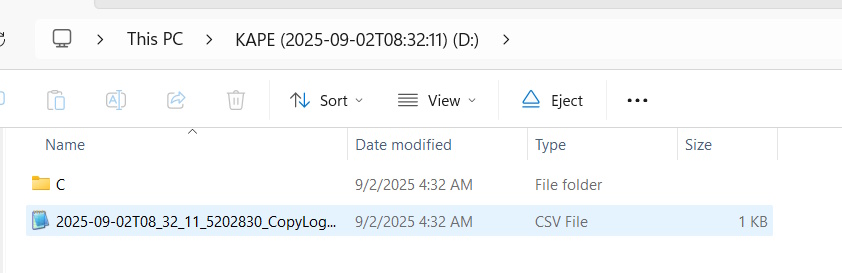
Inside the zip is a disk image named 2025-09-02T083211_pathology_department_incidentalert.vhdx. If we treat this like a real investigation, we need to always make sure that the file is read only. When I mount it in Windows, I can click through and see “stuff”.
Let’s see what we have to do.
Task 1 Question: What is the CVE assigned to the WinRAR vulnerability exploited by the RomCom threat group in 2025?
So this one is just a Google problem. I searched romcom winrar vulnerability and the second link pointed me here, which gave the answer.
Task 1 Answer: CVE-2025-8088
Task 2 Question: What is the nature of this vulnerability?
Read the link and it is right there at the start.
Task 2 Answer: path traversal
Task 3 Question: What is the name of the archive file under Susan’s documents folder that exploits the vulnerability upon opening the archive file?
Here, I just want to dig in and look at the files. The Drive Label is “KAPE (2025-09-02T08:32:11)” and inside the C folder is an $MFT file. We know we’re dealing with KAPE artifacts now, so we need help from hero of the community, Eric Zimmerman. I was just going to use his suggestion and grab all tools so that I’m totally up to date. However, the download links are broken at the moment. I’m using a version from Chocolatey “choco install ericzimmermantools“, but it isn’t 100% up-to-date. However, I think this will get us enough of the tools to do this easy HTB room.
One of the tools that I got was called MFT Explorer. This is a graphical version of his famed MFTECmd tool. I used that to load up the image and here’s what I see.
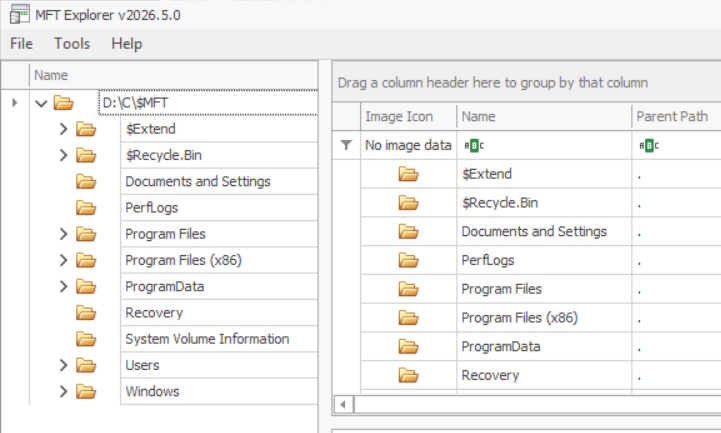
I used the tool to navigate to c:\users\susan\Documents and this is what I see, telling us the answer.
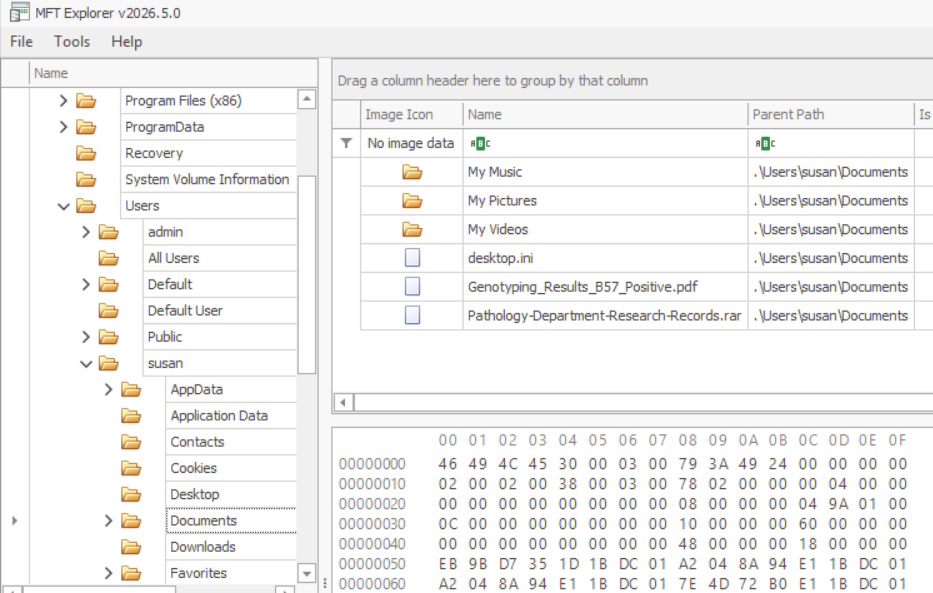
Task 3 Answer: Pathology-Department-Research-Records.rar
Task 4 Question: When was the archive file created on the disk?
Look at the SI_Created On column.
Task 4 Answer: 2025-09-02 08:13:50
Task 5 Question: When was the archive file opened?
You can see this in SI_Record Changed or in the Overview tab when the file is selected under Record Modified On.
Flags: Archive, Max Version: 0x0, Flags 2: None, Class Id: 0x0, Owner Id: 0x0, Security Id: 0x9DD, Quota Charged: 0x0
Update Sequence #: 0x364A528

Created On:		2025-09-02 08:13:50.5190826
Content Modified On:	2025-09-02 14:54:54.0000000
Record Modified On:	2025-09-02 08:14:04.9807437
Last Accessed On:	2025-09-02 08:14:18.8730290
Task 5 Answer: 2025-09-02 08:14:04
Task 6 Question: What is the name of the decoy document extracted from the archive file, meant to appear legitimate and distract the user?
Using the 8:14:04 as a clue, we look in the Documents folder and see that a .pdf was created at 08:14:18 of the same day. That’s our file.
Task 6 Answer: Genotyping_Results_B57_Positive.pdf
Task 7 Question: What is the name and path of the actual backdoor executable dropped by the archive file?
We cheated a bit to get those last 2 answer. That’s not the best way to go about that. At this point, we need to not be lazy and do this correctly. We need to parse the journal and to do that, we’re going to use the MFTECmd.exe tool against the $J file and also give it the location of where to save the csv and what to call it.
PS > MFTECmd.exe -f 'd:\C\$Extend\$J' --csv "c:\code\" --csvf "Journal.csv"
MFTECmd version 2026.5.0

Author: Eric Zimmerman (saericzimmerman@gmail.com)
https://github.com/EricZimmerman/MFTECmd

Command line: -f d:\C\$Extend\$J --csv c:\code\ --csvf Journal.csv

File type: UsnJournal


Processed d:\C\$Extend\$J in 0.2817 seconds

Usn entries found in d:\C\$Extend\$J: 215,579
        CSV output will be saved to c:\code\Journal.csv
Okay, now we’re going to use another tool to open that csv called TimelineExplorer.exe that also gets installed when you get all of the Eric Zimmerman tools.
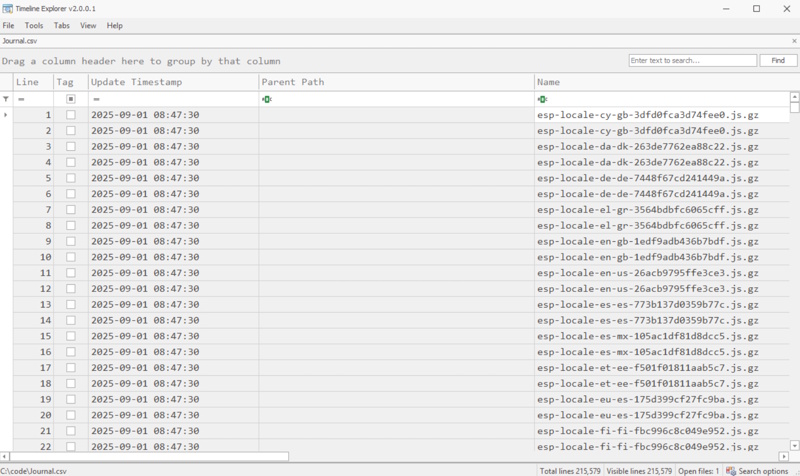
I then added a filter for .exe files and then sorted by “Update Timestamp“. If we scroll down to the 2025-09-02 08:14:04 timeframe, we find our problem child.
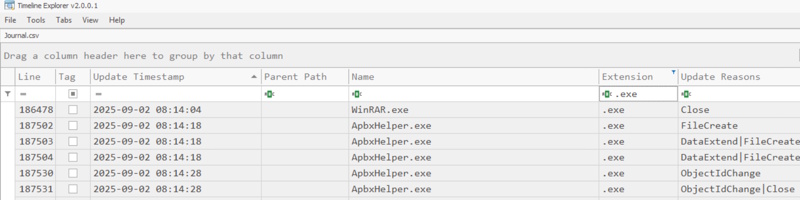
So we can see the name, but not where it is dropped. We could look all around the MFT Explorer, but this is what I get for using GUI tools instead of going command line first. The best way to do this is to parse the $MFT file into a .csv also and use Timeline Explorer to get the path.
PS> MFTECmd.exe -f 'd:\C\$MFT' --csv "c:\code\" --csvf MFT.csv
MFTECmd version 2026.5.0

Author: Eric Zimmerman (saericzimmerman@gmail.com)
https://github.com/EricZimmerman/MFTECmd

Command line: -f d:\C\$MFT --csv c:\code\ --csvf MFT.csv

File type: Mft

Processed d:\C\$MFT in 1.7880 seconds

d:\C\$MFT: FILE records found: 139,533 (Free records: 0) File size: 136.5MB
        CSV output will be saved to c:\code\MFT.csv
Okay, when we open that up and search for the file name, it comes right up.
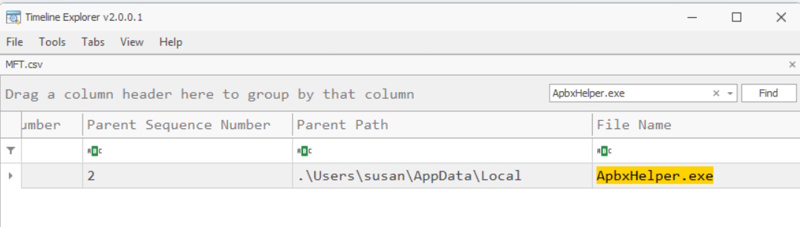
Task 7 Answer: c:\users\susan\AppData\Local\ApbxHelper.exe
Task 8 Question: The exploit also drops a file to facilitate the persistence and execution of the backdoor. What is the path and name of this file?
Persistence and execution usually means that something needs to run on startup. So the first thing I’d check would be shortcuts in a startup path, next I’d check for services added. But when I just do a find for startup in Timeline Explorer in the MFT csv, I get 254 lines. The first one that appears after the incident (and any time for the next several minutes) is a file called Display Settings.lnk.
Task 8 Answer: c:\users\susan\AppData\Roaming\Microsoft\Windows\Start Menu\Programs\Startup\Display Settings.lnk
Task 9 Question: What is the associated MITRE Technique ID discussed in the previous question?
I googled for mitre id for persistence via the startup folder and that let me to T1547:Boot or Logon Autostart Execution. I guessed the wrong sub-technique, thinking that it would be .001: Registry Run Keys / Startup Folder, but eventually figured that they wanted .009:Shortcut Modification.
Task 9 Answer: T1547.009
Task 10 Question: When was the decoy document opened by the end user, thinking it to be a legitimate document?
Within the MFT csv, search for the document name Genotyping_Results_B57_Positive.pdf, you can see when it was opened and you can confirm it in the Journal.csv.
Task 10 Answer: 2025-09-02 08:15:05
That’s it. Maybe not the most efficient run-through, but we got it done. Any questions or comments, please let me know.